
/HealthSherpa_Icon_Integration_Blue.png?width=300&height=300&name=HealthSherpa_Icon_Integration_Blue.png "HealthSherpa_Icon_Integration_Blue")
How to Import Leads
on HealthSherpa
You've chosen to download a template, fill it in, and import your leads. Great Choice!
Follow the steps below to get started. If you need help, please call us at (888) 684-1373 or click below to set up a 1:1 meeting with our expert team.
Rather search & claim? Click here.
Step 1: Sign up for HealthSherpa
Before you can start moving clients to HealthSherpa from Healthcare.gov, you'll need to create your HealthSherpa Account. Choose "Guided Setup" to ensure your account is integrated with the FFM during the onboarding process.
Step 2: Get connected
CMS requires agents and brokers to have an active FFM account integration in order to search the Marketplace, submit applications, or view clients. You also have to complete an identity check in order to leverage HealthSherpa's full suite of unique features.
Make sure your account is integrated with the FFM and you have enabled Enhanced Direct Enrollment (EDE) before moving on.
.png "HealthSherpa Dashboard showing EDE Enabled button")
Step 3: Choose "Leads" on the left
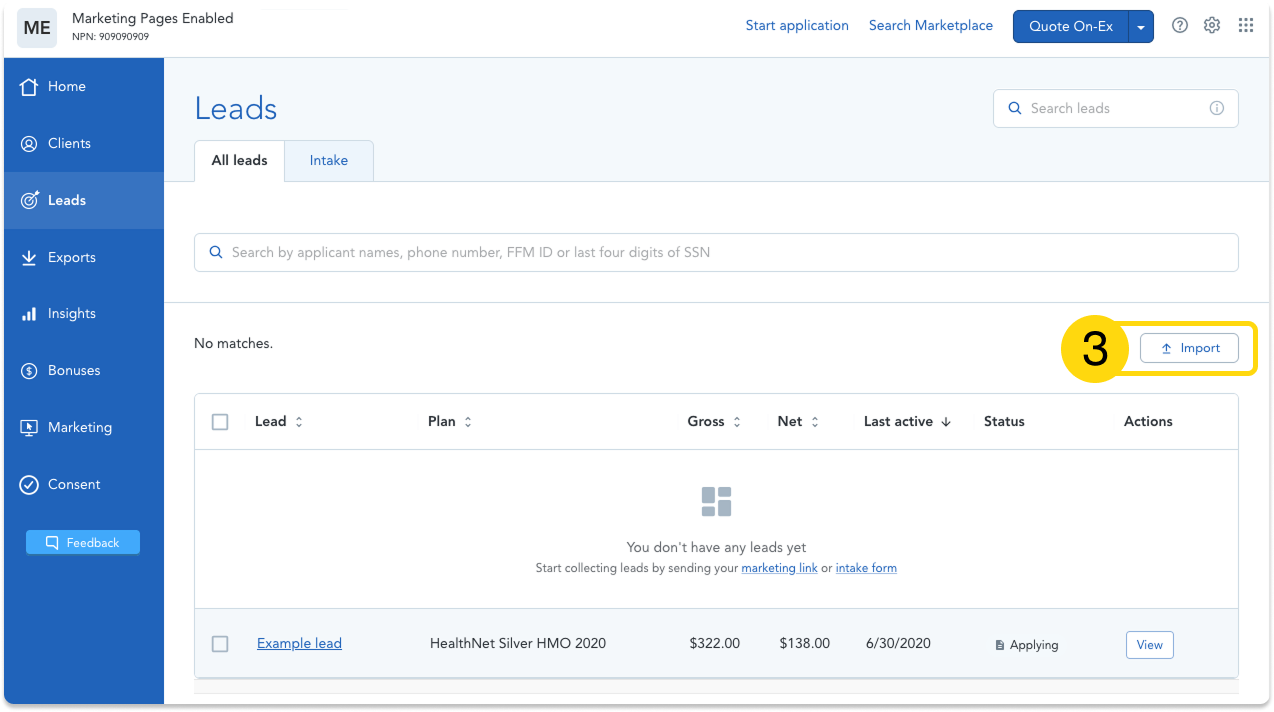
Once you have EDE enabled, navigate to the Leads page by clicking "Leads" in the blue menu on the left hand side of the screen.
-
Once you're there, click the Import button.
Step 4: Download CSV Template
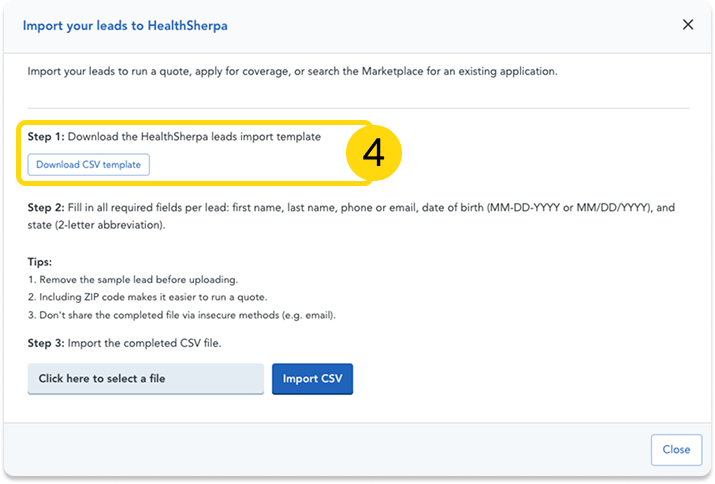
When you click "Import" a new window will pop up. You'll see this window now, and return to this window when you're ready to upload your completed spreadsheet.
-
Click "Download CSV template" and save the file to your desktop.
Step 5: Populate the template
Now that you have the template saved, it's time to populate it with your client data from Healthcare.gov and save it with a name you recognize.
You'll need the following pieces of information for each lead:
-
First name and last name
-
Phone number
-
Email Address
-
Date of birth
-
State
- ZIP Code
.png?width=500&height=368&name=Group%201171280475%20(2).png "Group 1171280475 (2)")
Important CSV tips:
-
Do not change, rename, or rearrange the column headers.
-
Delete the sample data row that comes pre-filled in the template before uploading.
-
Save the file as a .csv file (not .xlsx) when you're done.
-
Do not send this file via email or other insecure methods, as it contains client PII.
Step 6: Upload your Spreadsheet
When you've filled in your spreadsheet, ensure you've saved it as a .CSV file with a name you will remember.
Navigate back to the Leads page (like in step 2) and click "Import". You will once again see the "Import your leads to HealthSherpa" window.
Click "Click here to select file" to browse for the .CSV file you just saved. Once you've made your selection and the name of your file shows in the field, click "Import CSV" to start your upload.
.png "Group 1171280474 (1)")
Step 7: Search for each lead
After uploading your CSV file, you will see a notification on the Leads page that we are working on your upload and you'll receive an email when your upload is complete. This may take a few minutes.
When your upload is complete, you will see the leads you uploaded populated on the page.
- Click new arrow next to the Resume button and choose "Search Marketplace" from the menu.
- Your client's information will populate in the search window.
- Verify you have consent to claim this application and click "Search Marketplace".
.png?width=500&height=283&name=Group%201171280476%20(1).png "Group 1171280476 (1)")
.png?width=500&height=266&name=Group%201171280477%20(1).png "Group 1171280477 (1)")
Step 8: Claim each application
When you search for your client, you will get a list of possible applications.
- Click "Apply" to update an application that is not already associated with your HealthSherpa account.
- Click "View in Dash" when an application is already associated with your HealthSherpa account to go to the client's Details page.
For more information on Claiming an Application, visit our Help Center >>
.png "Group 1171280461 (1)")
Step 9: Forge ahead!
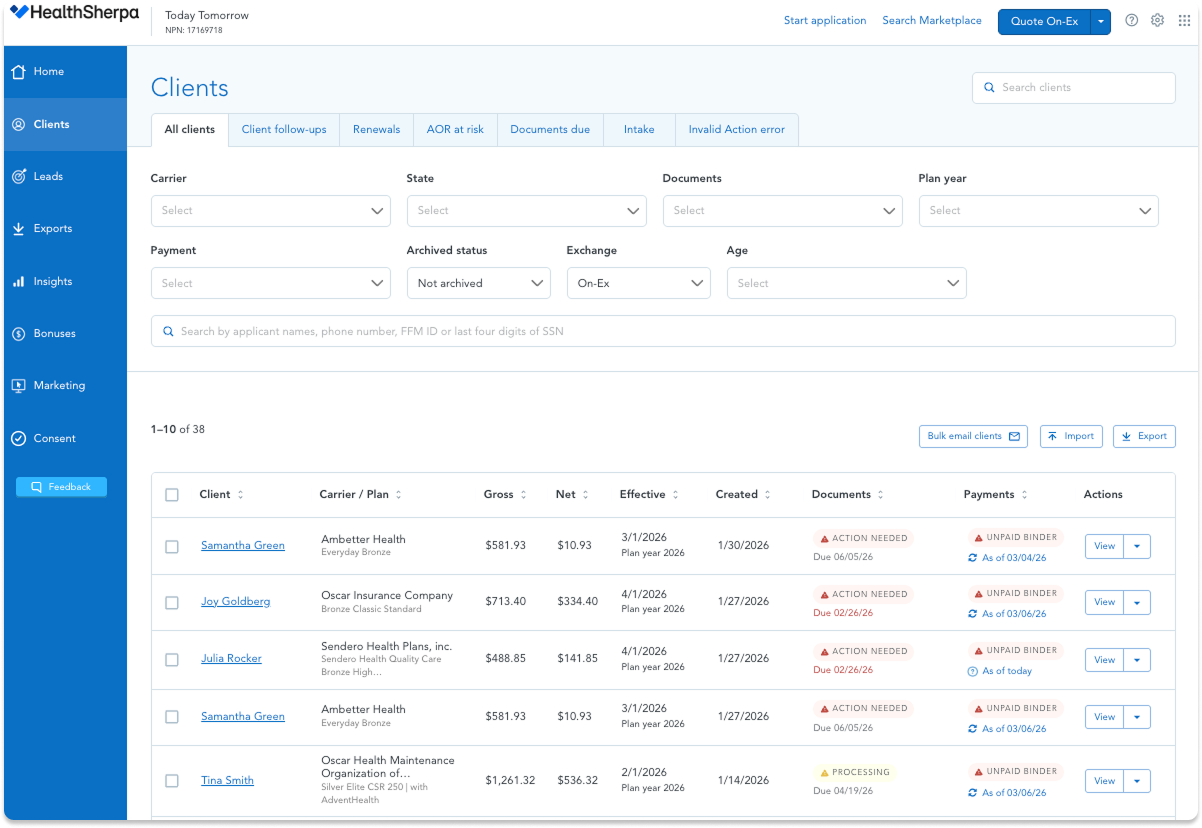
Repeat the Search & Claim process until you have claimed all of your leads and they appear on your "Clients" page.
If you need to transfer more than 100 clients, please let us know and we'll be happy to assist you with your transition to make it as efficient as possible.

Need help? We've got it!
HealthSherpa's expert Agent Support Team is available by chat, phone, and email to help you with any question or situation.
Call (888) 684-1373 for urgent issues or when real-time help is needed.
Email support@healthsherpa.com for non-urgent questions or issues that require screenshots or detailed explanations.
Chat directly from your HealthSherpa for Agents account. Chat works well for quick questions or step-by-step help.
Alternative Option: Import Clients
Search & Claim is the most accurate way to transition your clients to our platform, but you can also upload a spreadsheet with client information.
Once you've created and logged into your HealthSherpa account:
-
Go to the Clients page and click the Import button.
-
Click "Download CSV Template" to get the required import file.
-
Fill in the template with one row for each client. Be sure to include each consumer's first and last name, DOB, full address, current plan and effective date, gross monthly premium, FFM application ID, & phone number or email.
- Once you have you spreadsheet prepared, navigate to the Clients page in your HealthSherpa account, click Import.
- Select your completed file then click "Import CSV."
Once you have your clients uploaded you will still need to go through your client list and choose "View in Dash" to ensure your client's record syncs with CMS.
.png "Screenshot of Import Pop-up")
Ready to start enrolling on our agent platform?
Create a free agent account or request a demo for your agency!
.png "Health Sherpa 05722 1 (2)")